
Zendesk dashboards and apps on your live tickets
Turn tickets into action. Build apps that route, track and resolve support requests on your live Zendesk data.
Brilliant’s Zendesk integration builds dashboards and apps on your Zendesk help desk from a plain-words description.
The app reads tickets, their metrics and satisfaction ratings live, and can create, update and reply to tickets when you allow it. Support, IT and customer success teams use it for SLA monitors, service desks and customer views that put tickets next to CRM and engineering data.
What Brilliant can do with Zendesk
What Brilliant reads from Zendesk
- Tickets with their status, priority, assignee, tags and comments
- Ticket metrics and satisfaction ratings
- Views, macros and ticket forms
- Users, organizations and groups
What an app can do in Zendesk, with read and write access
- Create, update and reply to tickets
- Add and change the tags on tickets
- Create and update users and organizations
Choose read-only or read and write when you connect Zendesk. An automation can start when a new ticket arrives in a Zendesk view.
Use cases that run on Zendesk
Each of these apps reads from Zendesk. Open one to see its prompt, the tools it runs on and how to build it.
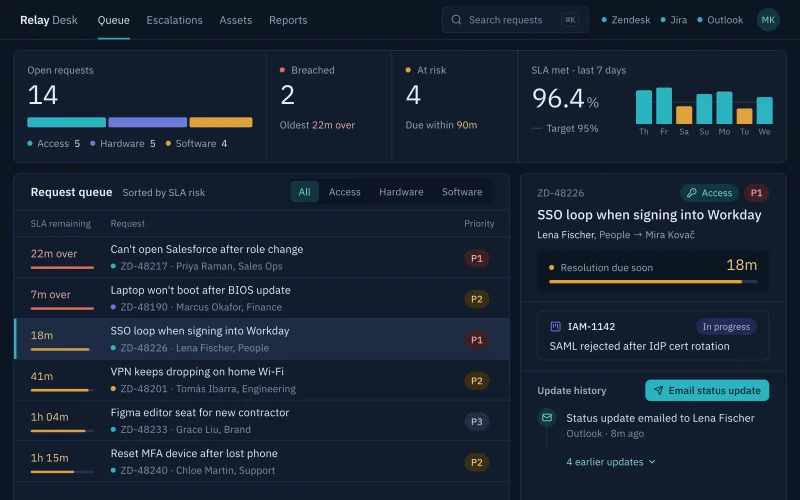 Service deskTickets by priority, agent and time to breach, with requests about to miss their SLA at the top.
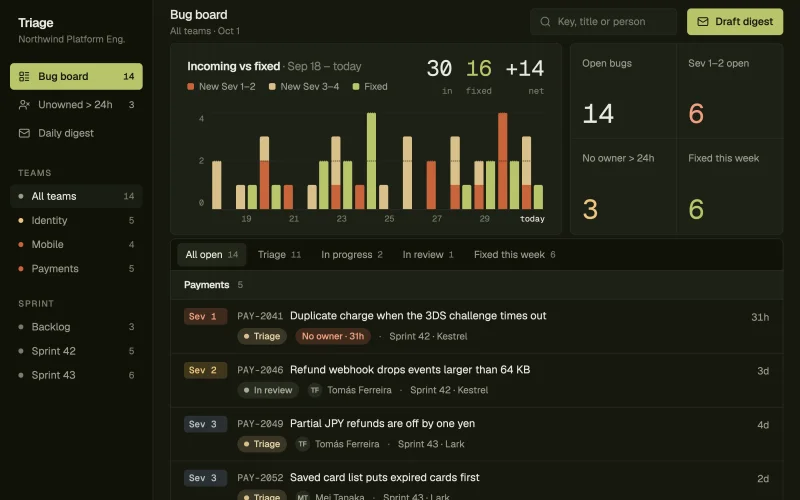 Bug triageNew bugs by severity, area and customer impact, with the untriaged ones at the top.
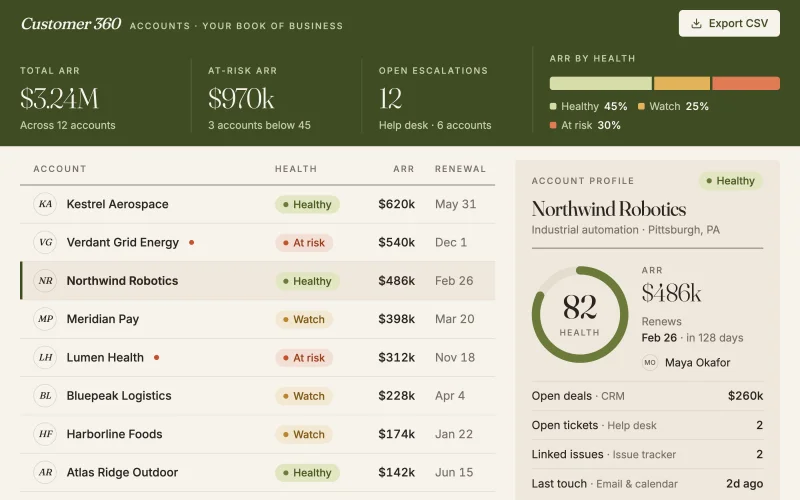 Customer 360Deals, tickets and issues on one page per account. Spot at-risk customers before they churn.
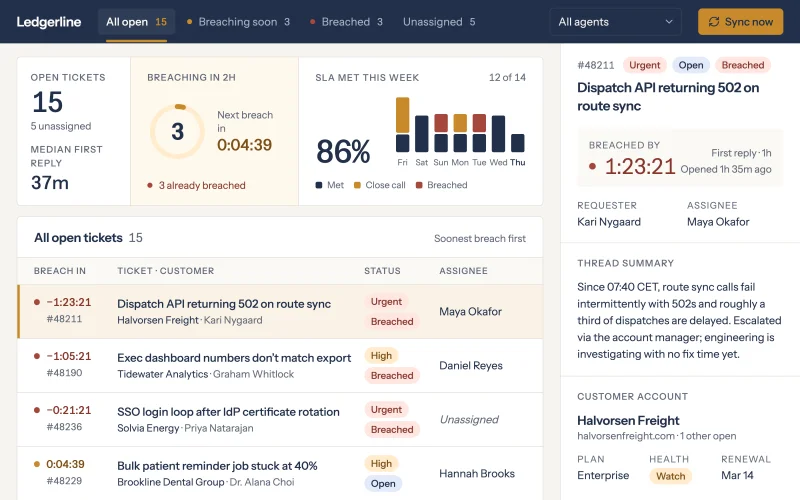 Support SLAsOpen tickets by account, priority and time to breach, so the team works the ones about to miss their SLA first.
Prompts to start from
Use one as it is, or change it to fit your team. Brilliant connects Zendesk when it builds.
Build a billing inbox that lists Zendesk tickets tagged billing with the customer's HubSpot deal and contract value, oldest first.
Build an access request desk that lists Zendesk tickets asking for system access, with the requester, system and approver, and shows the ones waiting on approval.
Build an account health dashboard that scores every HubSpot customer on open deals, Zendesk tickets and days to renewal, and lists the ten lowest-scoring accounts.
Works well with
The tools most often paired with Zendesk in the use cases.
- JiraTogether in Service desk, Bug triage, Customer 360
- HubSpotTogether in Customer 360, Support SLAs


Connect Zendesk in three steps
Describe the app
Say what you need in plain words and name Zendesk, or start from one of the prompts above. Brilliant asks a few quick questions, then builds the app.
Connect Zendesk
Enter your Zendesk subdomain, the acme in acme.zendesk.com, then sign in to Zendesk. Check the spelling: a typo in the subdomain stops every call. Choose read-only or read and write when you connect Zendesk. Once connected, every app you build can reuse the connection.
Share it with your team
Brilliant builds the app on your live Zendesk data. Share it with your team and choose what each person can do with the app’s own records: view only, add new records, edit the records they created, or edit everything. Changes in Zendesk follow the connection’s read-only or read and write access, for everyone who uses the app.
Frequently asked questions
Can I build a Zendesk SLA dashboard?
Yes. Ask Brilliant for a Zendesk dashboard that shows every open ticket with its priority, agent and time to SLA breach, and it builds it on your live tickets. Add your CRM to group tickets by account tier, as the support SLA use case does, and flag the tickets about to breach.
Can a Zendesk app reply to tickets?
It can if you connect Zendesk with read and write access. The app can then create tickets, update their fields and tags, and post replies. Connected read-only, a Zendesk app only shows and filters tickets, which suits a dashboard nobody should change tickets from.
What does Brilliant need to connect Zendesk?
Only your Zendesk subdomain and a sign-in. Enter the acme part of acme.zendesk.com, sign in to Zendesk, and choose read-only or read and write. You connect once, and every Brilliant app you build later can reuse the same Zendesk connection.