
Apps on your Outlook mail and calendar
Build apps on your Outlook mail and calendar, so requests and follow-ups never slip.
Brilliant’s Outlook integration builds apps on Microsoft Outlook mail and calendar from a plain-words description.
The app reads messages and calendar events live, and with read and write access it sends email, plain or designed. Operations, HR and finance teams use it to turn emailed requests into tracked work, and to send decisions and reminders from a mailbox people already recognize.
What Brilliant can do with Outlook
What Brilliant reads from Outlook
- Messages in the connected mailbox
- Calendar events, with their subject, time and location
- The connected account’s profile
What an app can do in Outlook, with read and write access
- Send email, as plain text or a designed message
Choose read-only or read and write when you connect Outlook. An automation can start when a message arrives in an Outlook folder or is sent, or when a calendar event is created or changed.
Use cases that run on Outlook
Each of these apps reads from Outlook. Open one to see its prompt, the tools it runs on and how to build it.
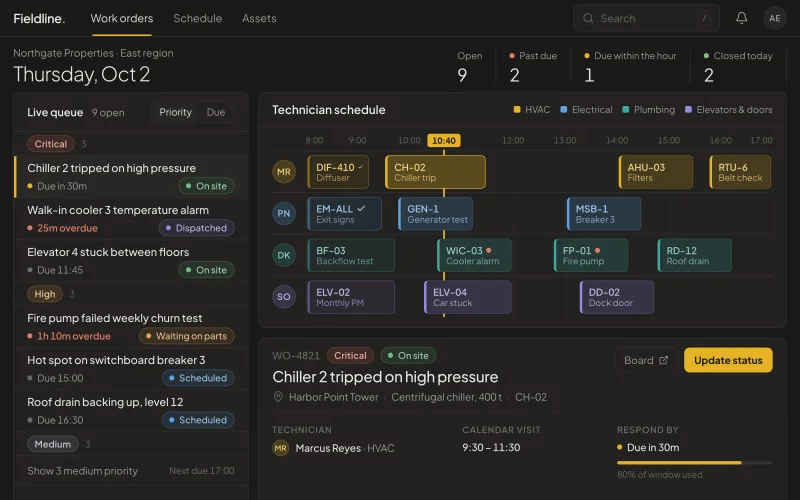 Work ordersMaintenance and service requests in one queue with priority, assignee and due date.
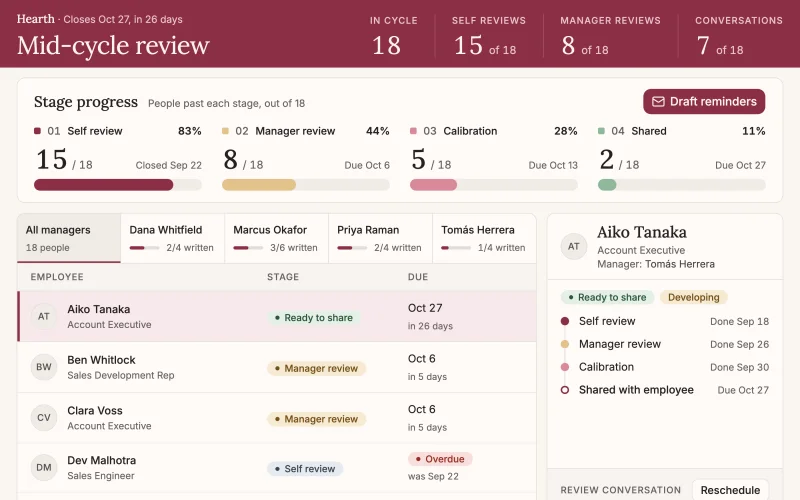 Performance reviewsEvery employee's self-review, manager review and one-on-one in one cycle tracker, with reminders for whoever is holding things up.
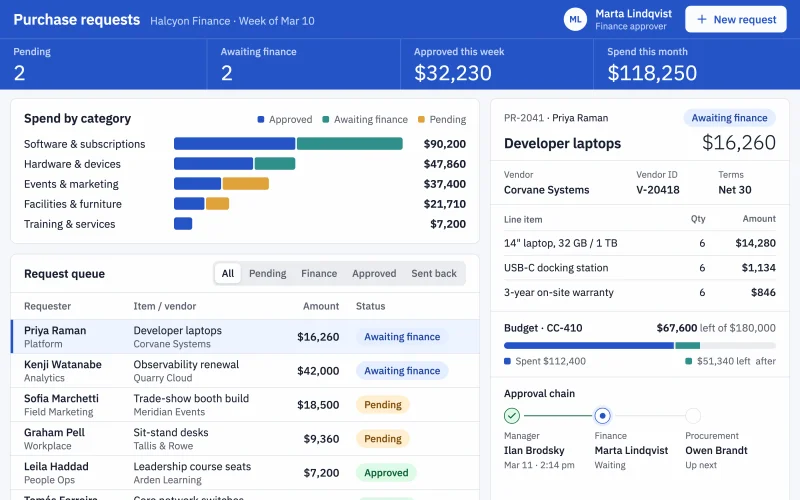 Purchase requestsEvery request with its amount, budget line and approver in one desk, so spend is approved before it happens.
Prompts to start from
Use one as it is, or change it to fit your team. Brilliant connects Outlook when it builds.
Build an HR request desk that turns Outlook emails to the HR inbox into requests with category, owner and status, and lists the ones waiting more than two days.
Build an app that turns Outlook emails sent to our team inbox into tracked requests with owners.
Build a meeting-prep page from my Outlook calendar, with attendees, related emails and notes for each meeting.
Works well with
The tools most often paired with Outlook in the use cases.
- monday.comTogether in Work orders, Performance reviews, Purchase requests
- Google CalendarTogether in Work orders, Performance reviews


Connect Outlook in three steps
Describe the app
Say what you need in plain words and name Outlook, or start from one of the prompts above. Brilliant asks a few quick questions, then builds the app.
Connect Outlook
Sign in on Microsoft’s own sign-in screen when Brilliant asks. Connect asks for nothing else. Choose read-only or read and write when you connect Outlook. An app can also ask each person to connect their own account. Once connected, every app you build can reuse the connection.
Share it with your team
Brilliant builds the app on your live Outlook data. Share it with your team and choose what each person can do with the app’s own records: view only, add new records, edit the records they created, or edit everything. Changes in Outlook follow the connection’s read-only or read and write access, for everyone who uses the app.
Frequently asked questions
Can an Outlook app turn emails into requests?
Yes. Describe the flow and Brilliant builds an app that reads the messages sent to an Outlook inbox and turns each one into a tracked request or work order with an owner, a status and a due date. The work-order queue and the HR request desk on this page both start that way.
Can an Outlook app send reminders from my mailbox?
It can if you connect Outlook with read and write access. The app then sends email from the connected mailbox, such as a reminder to anyone overdue on a review, or a purchase decision to the person who asked. Connected read-only, an Outlook app only reads mail and calendar events.
Whose Outlook account does the app use?
The account connected to the app. A shared Outlook connection is used by everyone the app is shared with, which suits a team inbox. When each person should work from their own mail and calendar, the app can ask each person to connect their own Outlook account instead.