
Jira app builder: apps on your issues and sprints
Build apps on your issues, sprints and projects, so engineering work is visible to everyone.
Brilliant’s Jira integration builds apps on your Jira issues, projects and sprints from a plain-words description.
The app finds issues with JQL and reads them live, and can create, assign and move issues when you allow it. IT, operations and customer success teams use it for bug triage, service desks and project portfolios that show engineering work to the people who wait on it.
What Brilliant can do with Jira
What Brilliant reads from Jira
- Issues, found with JQL, with their status, assignee, comments and worklogs
- Projects, boards, sprints and versions
- Dashboards and saved filters
- Users and groups
What an app can do in Jira, with read and write access
- Create, edit, assign and transition issues
- Add comments, attachments and worklogs
- Create sprints and move issues into them
- Link issues and create versions
Choose read-only or read and write when you connect Jira. An automation can start when a Jira issue is created or updated, when a comment is posted, or when a sprint starts or closes.
Use cases that run on Jira
Each of these apps reads from Jira. Open one to see its prompt, the tools it runs on and how to build it.
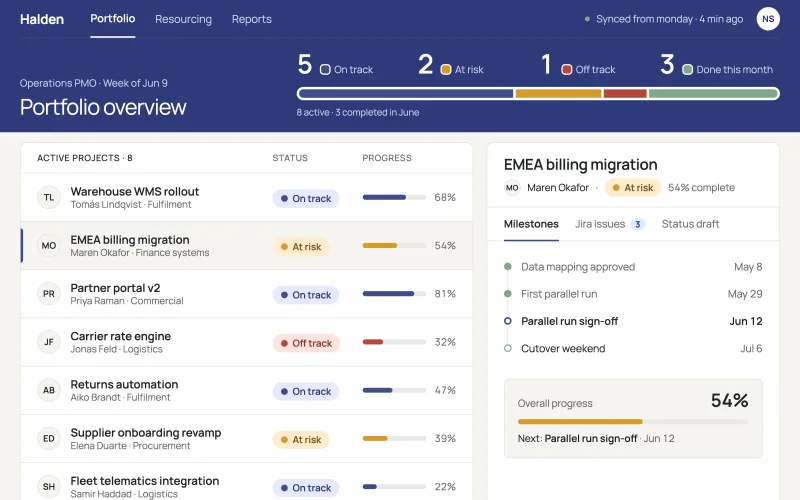 Project portfolioOwners, milestones, budgets and blockers for every project in one live portfolio.
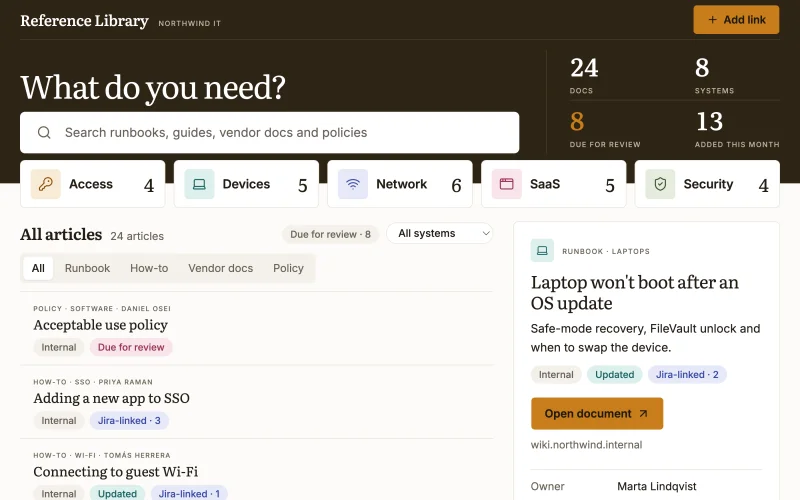 Knowledge hubAdmins curate links to internal and external docs for every system, with review dates and the open issues next to them, so people stop asking the same questions.
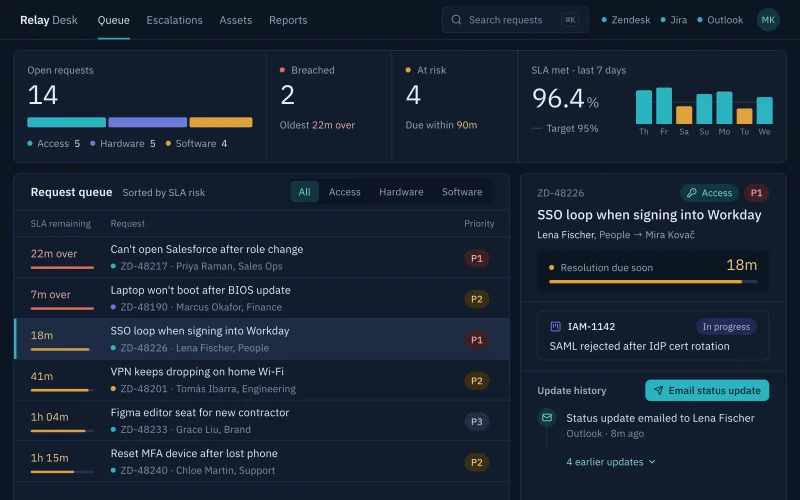 Service deskTickets by priority, agent and time to breach, with requests about to miss their SLA at the top.
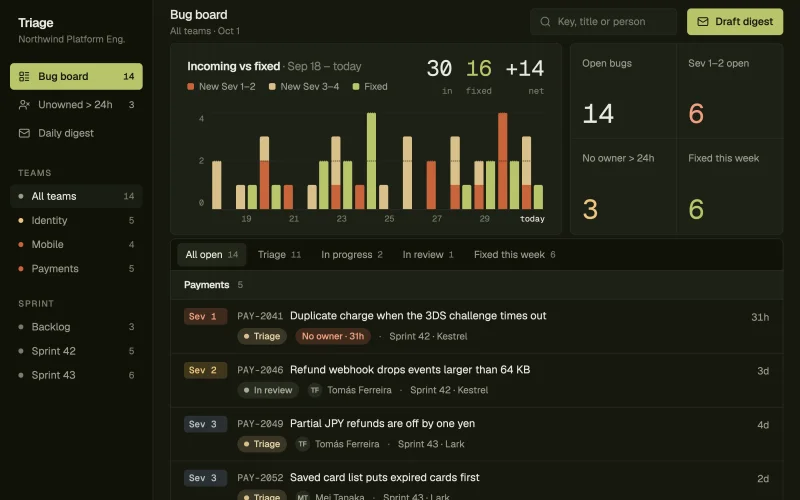 Bug triageNew bugs by severity, area and customer impact, with the untriaged ones at the top.
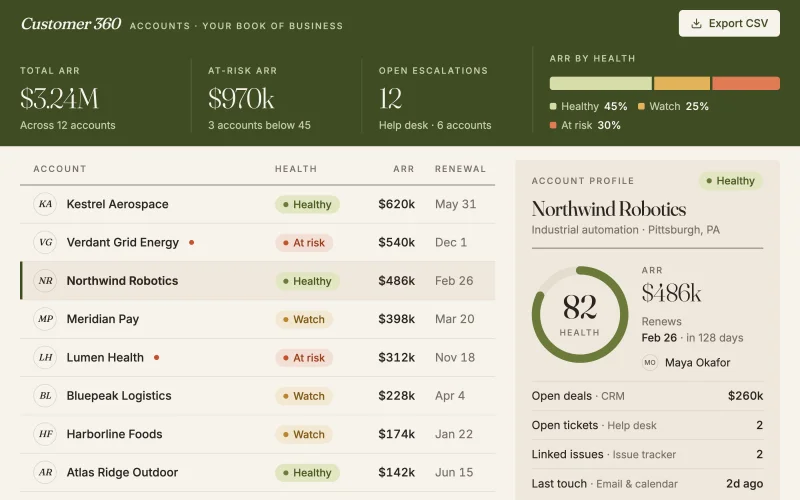 Customer 360Deals, tickets and issues on one page per account. Spot at-risk customers before they churn.
Prompts to start from
Use one as it is, or change it to fit your team. Brilliant connects Jira when it builds.
Build a risk register that collects risks per monday.com project with likelihood, impact and owner, links each to its Jira issue, and lists the top ten open risks.
Build a release calendar that shows upcoming Jira releases with their open issues and dates on a Google Calendar view.
Build an escalations board that pulls urgent Zendesk tickets, groups them by account, and shows each one's linked Jira issue and status.
Works well with
The tools most often paired with Jira in the use cases.
- ZendeskTogether in Service desk, Bug triage, Customer 360
- HubSpotTogether in Customer 360
- monday.comTogether in Project portfolio


Connect Jira in three steps
Describe the app
Say what you need in plain words and name Jira, or start from one of the prompts above. Brilliant asks a few quick questions, then builds the app.
Connect Jira
Enter your Jira site’s subdomain, the acme in acme.atlassian.net (copy it from your browser’s address bar), then sign in with your Atlassian account. Choose read-only or read and write when you connect Jira. Once connected, every app you build can reuse the connection.
Share it with your team
Brilliant builds the app on your live Jira data. Share it with your team and choose what each person can do with the app’s own records: view only, add new records, edit the records they created, or edit everything. Changes in Jira follow the connection’s read-only or read and write access, for everyone who uses the app.
Frequently asked questions
Can I build a Jira app for people outside engineering?
Yes. A Brilliant app built on Jira can show issues, releases and blockers in plain screens for the people who wait on engineering, such as a sprint summary for stakeholders. Share the app with them in Brilliant: they open the app and see the same live Jira issues your engineers work on.
Can a Jira app create issues?
It can if you connect Jira with read and write access. The app can then create issues with the right fields, assign them, add comments and move them through your workflow, as a bug intake form does. Connected read-only, a Jira app only shows and searches issues.
Which Jira site does Brilliant connect to?
The one you name. When you connect Jira, enter your site’s subdomain, the acme in acme.atlassian.net, and sign in with your Atlassian account. Brilliant then reads that site’s projects and issues live, and every app you build later can reuse the same Jira connection.