
Scheduling apps on Google Calendar
Build scheduling and planning apps on your team's calendars, events and availability.
Brilliant’s Google Calendar integration builds scheduling apps from a plain-words description.
The app reads events and free/busy times across your calendars live, and with read and write access it creates and moves events for you. HR, marketing, operations and customer success teams pair it with a board or a CRM to book interviews, check-ins and reviews next to the work they belong to.
What Brilliant can do with Google Calendar
What Brilliant reads from Google Calendar
- Events across your calendars, with their attendees and times
- Free/busy times and open slots
- Calendars, meeting rooms and buildings
What an app can do in Google Calendar, with read and write access
- Create, update and move events
- Add an event from a single line of text
- Create calendars and share them
Choose read-only or read and write when you connect Google Calendar. An automation can start when an event is created, changed or cancelled, when one is about to start, or when an attendee’s reply changes.
Use cases that run on Google Calendar
Each of these apps reads from Google Calendar. Open one to see its prompt, the tools it runs on and how to build it.
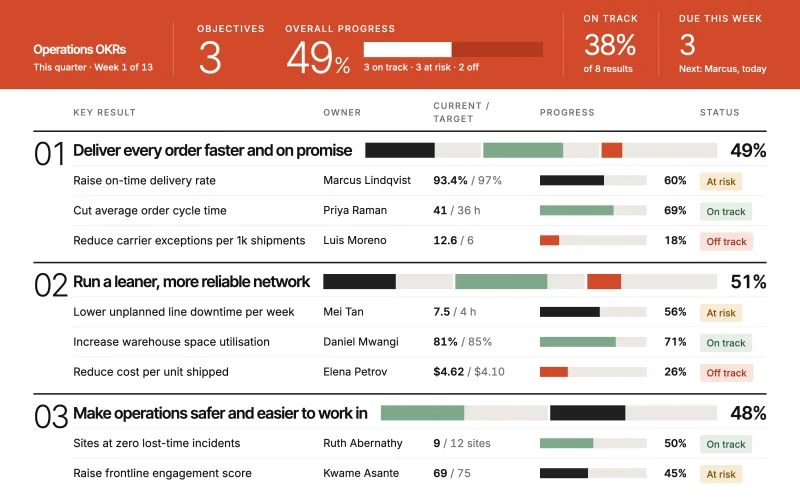 OKR trackerObjectives, key results and weekly check-ins, with off-track results surfaced before the review.
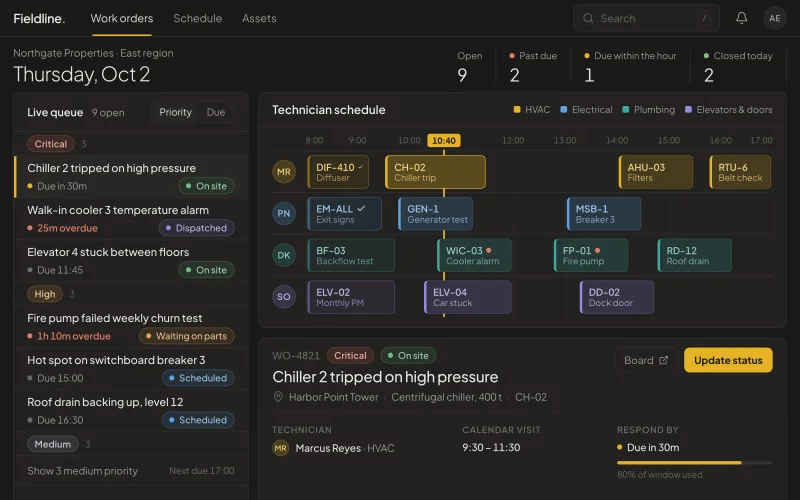 Work ordersMaintenance and service requests in one queue with priority, assignee and due date.
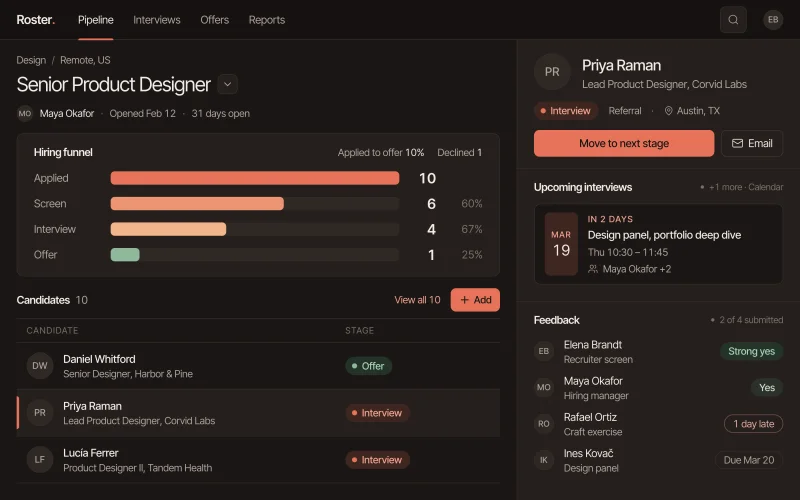 Recruiting pipelineOpen roles, candidates and interviews in one pipeline, with candidates waiting on feedback up top.
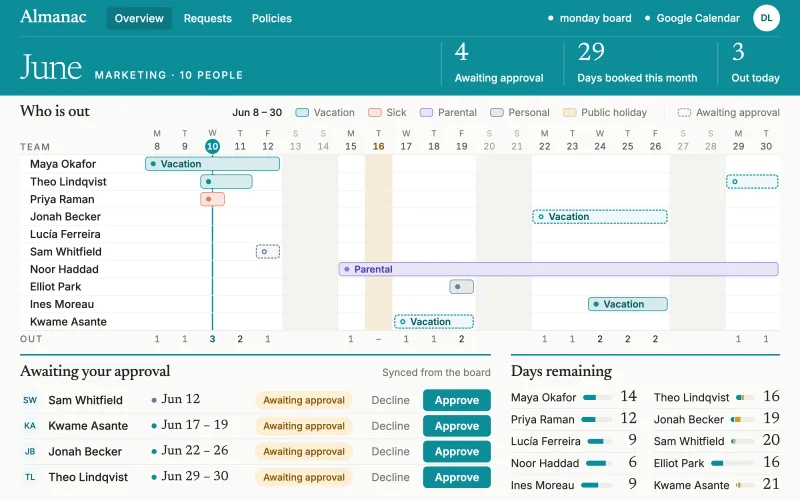 Time offRequests, balances and who’s out when, in one planner. Managers approve in a click.
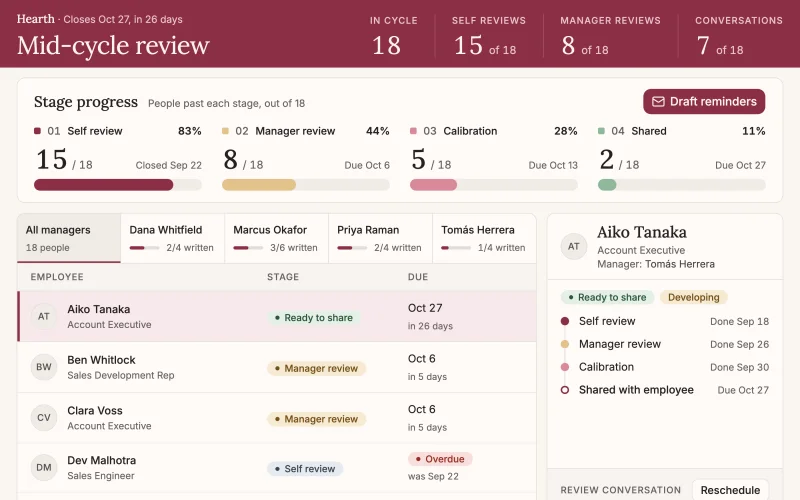 Performance reviewsEvery employee's self-review, manager review and one-on-one in one cycle tracker, with reminders for whoever is holding things up.
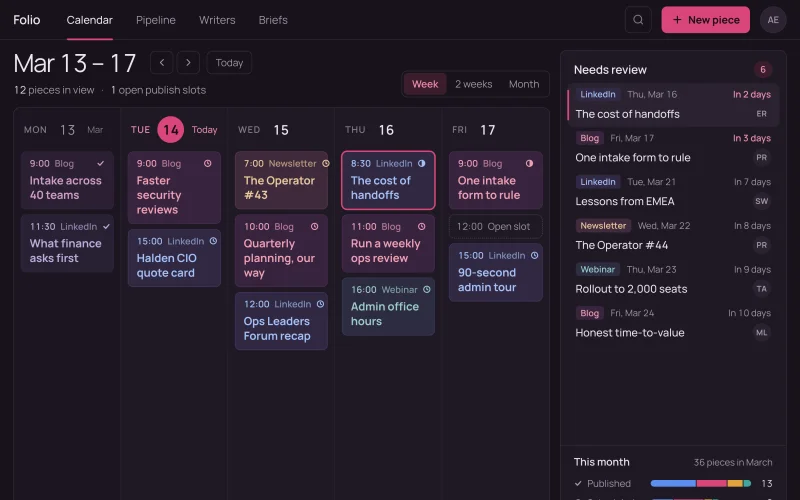 Content calendarEvery post, article and email by date, owner and status, with late pieces flagged before publish day.
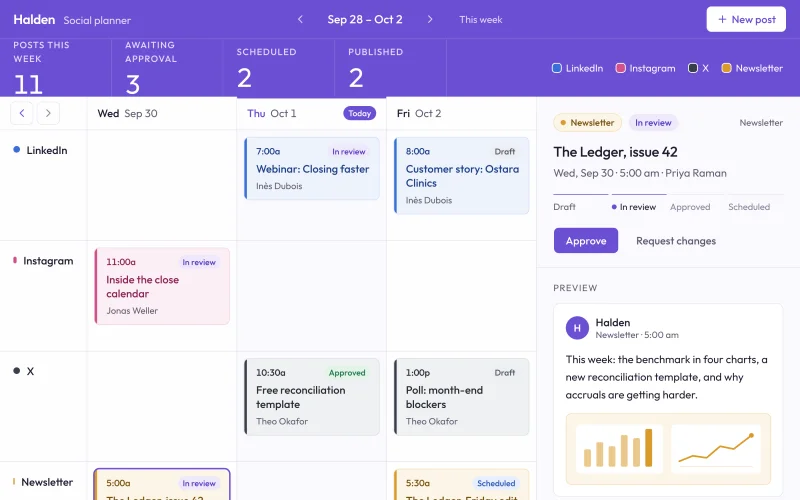 Social plannerDrafts, approvals and the posting schedule for every channel, so nothing goes live before it's signed off.
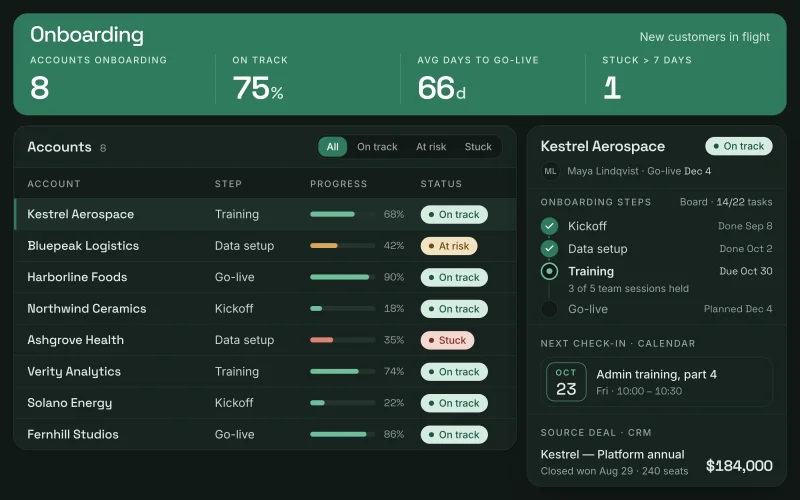 Customer onboardingKickoff, setup steps and go-live dates for every new account, fed by the deal that closed it.
Prompts to start from
Use one as it is, or change it to fit your team. Brilliant connects Google Calendar when it builds.
Build a capacity view that shows each person's open monday.com tasks and booked Google Calendar hours for the next two weeks, and flags anyone over 40 hours.
Build a meeting prep page that lists today's Google Calendar customer meetings and shows each account's open HubSpot deals and last touch.
Build a new-hire onboarding checklist on a monday.com board with IT, payroll and manager tasks per person, and books first-week meetings in Google Calendar.
Works well with
The tools most often paired with Google Calendar in the use cases.
- monday.comTogether in OKR tracker, Work orders, Recruiting pipeline, Time off, Performance reviews, Content calendar, Social planner, Customer onboarding
- OutlookTogether in Work orders, Performance reviews
- HubSpotTogether in Customer onboarding


Connect Google Calendar in three steps
Describe the app
Say what you need in plain words and name Google Calendar, or start from one of the prompts above. Brilliant asks a few quick questions, then builds the app.
Connect Google Calendar
Sign in with Google when Brilliant asks. Connect asks for nothing else. Choose read-only or read and write when you connect Google Calendar. An app can also ask each person to connect their own account. Once connected, every app you build can reuse the connection.
Share it with your team
Brilliant builds the app on your live Google Calendar data. Share it with your team and choose what each person can do with the app’s own records: view only, add new records, edit the records they created, or edit everything. Changes in Google Calendar follow the connection’s read-only or read and write access, for everyone who uses the app.
Frequently asked questions
Can I build an interview scheduler on Google Calendar?
Yes. Brilliant can build a scheduler that finds open slots in the panel’s Google Calendars and books the interview, next to a board that tracks candidates by stage. The recruiting pipeline use case shows each candidate’s upcoming interviews and flags anyone who has waited on feedback for more than three days.
Can each person connect their own Google Calendar?
Yes. By default a Brilliant app uses one shared Google Calendar connection. For an app where people book their own meetings or plan their own day, the app can ask each person to connect their own Google Calendar account, and it then works with events on that person’s calendar.
Can a Google Calendar app create events?
It can if you connect Google Calendar with read and write access. The app then creates, updates and moves events, such as approved time off on the team calendar or review deadlines on each reviewer’s calendar. Connected read-only, a Google Calendar app only reads events and free/busy times.